Biometric Attendance Software for PC: Free Download Guide
Biometric attendance software helps businesses record employee attendance using fingerprints, facial recognition or other biometric credentials. If you are looking for a biometric attendance software for PC free download, first check that the software is compatible with your biometric device, operating system and attendance requirements. Many fingerprint scanners and attendance terminals need specific software and drivers to work correctly.
What Does Biometric Attendance Software Do?
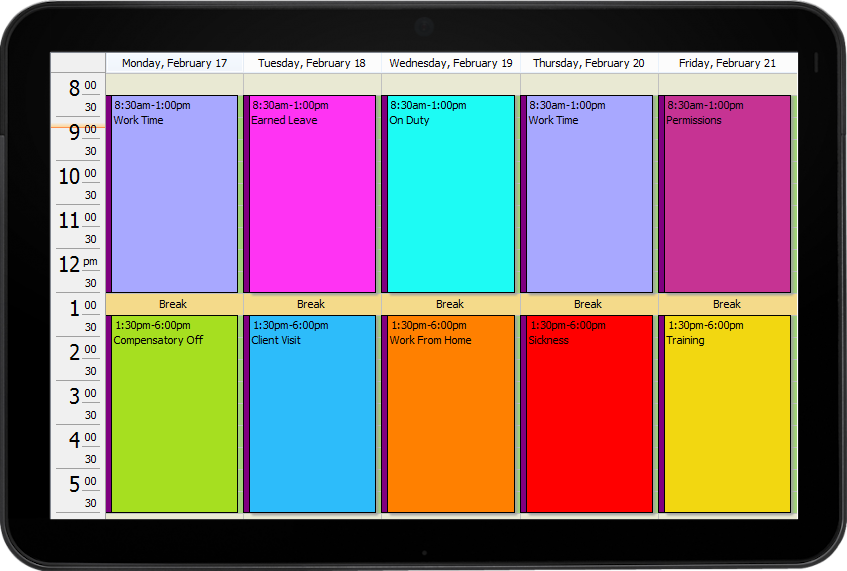
Attendance software connects to a biometric device and helps organisations manage daily attendance records. Depending on the product, it may allow you to:
- Record employee check-in and check-out times
- View late arrivals, early departures and absences
- Manage shifts, departments and employee profiles
- Generate attendance summaries and reports
- Export data to spreadsheets or payroll systems
- Synchronise records from one or more attendance devices
Can You Download It for Free?
Some biometric device manufacturers provide free attendance software with selected devices, while others offer a basic edition, a limited-time trial or paid plans. The available features and licence terms can vary by model and region. A free download may also be limited to a certain number of users, devices or functions.
Before downloading, check the manufacturer’s official website or contact the authorised supplier. Avoid unofficial download sites and “cracked” software. These can contain malware, expose employee information or violate the software’s licence terms.
Check These Requirements Before Installation
- Device compatibility: Confirm that the software supports your fingerprint reader or attendance terminal. A product from one manufacturer may not work with another brand’s device.
- Windows compatibility: Check the supported Windows version, system requirements and whether the installer is 32-bit or 64-bit.
- Drivers and connection: Your device may require a separate driver and a USB, network or Wi-Fi connection.
- Number of employees and devices: Check whether the free edition has user or device limits.
- Reports and payroll: Make sure it can provide the reports and export formats your organisation needs.
- Support and updates: Confirm whether technical support and software updates are included.
How to Download and Install Safely
- Find the exact brand and model number of your biometric device.
- Visit the device manufacturer’s official website or request the software from an authorised supplier.
- Read the system requirements and licence terms before downloading.
- Install the required drivers and software, following the manufacturer’s instructions.
- Connect the device and enrol a test user before setting it up for all employees.
- Back up attendance data regularly and restrict access to authorised staff.
Biometric Data and Employee Privacy
Biometric information is sensitive personal data. Collect only what is necessary, explain how attendance data will be used, limit access and protect stored records with suitable security measures. Follow applicable Indian privacy and employment requirements, and seek professional advice if you are unsure about your organisation’s obligations. Where appropriate, consider a non-biometric attendance option for employees who cannot or do not wish to use a biometric method.
Frequently Asked Questions
Is biometric attendance software free for every PC?
No. Some products are free for specific devices or limited use, while others require a paid licence. A PC alone is usually not enough; you will generally need a compatible biometric device as well.
Can I use any fingerprint scanner with free attendance software?
Not always. Compatibility depends on the software, device model, drivers and connection method. Check the manufacturer’s compatibility information before installing.
Can attendance data be exported to Excel?
Many attendance products offer spreadsheet or CSV exports, but this feature may vary by software edition. Confirm the available export options before choosing a solution.
Choose Software That Fits Your Device
The right biometric attendance software for a PC depends on your hardware, workforce size and reporting needs. Verify compatibility, download only from an official source and review data-protection practices before enrolling employees. For help selecting a suitable attendance system, contact a trusted supplier with your device model and required features.
5 Essential Tips for Safely Downloading Free Biometric Attendance Software for PC
- Download only from the software maker’s official website.
- Check that it supports your PC and biometric device.
- Review free-plan limits before installing.
- Scan the installer with trusted antivirus software.
- Protect staff data with access controls and secure backups.
Download only from the software maker’s official website.
Download biometric attendance software only from the software maker’s official website or an authorised supplier. This helps you get the correct version for your device and Windows PC, along with genuine drivers, updates and installation instructions. Unofficial download sites may provide outdated or modified files that contain malware or put employee attendance and biometric data at risk. Before installing, check the software’s compatibility and licence terms.
Check that it supports your PC and biometric device.
Before downloading biometric attendance software, check that it is compatible with your PC’s operating system and your biometric device’s make and model. You may also need to install specific drivers or connect the device through a supported USB or network connection. Confirming compatibility in advance can help prevent installation issues and ensure attendance data is recorded correctly.
Review free-plan limits before installing.
Before installing biometric attendance software, review the free-plan limits carefully. Some versions restrict the number of employees, devices or locations, while advanced reports, payroll exports, cloud access and technical support may require a paid upgrade. Check these details against your organisation’s needs to avoid unexpected costs or interruptions as your team grows.
Scan the installer with trusted antivirus software.
Before installing biometric attendance software on your PC, scan the downloaded installer with trusted, up-to-date antivirus software. This can help identify malware or suspicious files, particularly if the installer did not come directly from the device manufacturer’s official website. If the scan raises a warning, do not run the file; verify its source and download a fresh copy from an authorised source.
Protect staff data with access controls and secure backups.
Protect staff data by restricting access to biometric attendance software to authorised users only, using strong passwords and role-based permissions wherever available. Back up attendance records regularly and store backup copies securely, with encryption if supported. These steps help prevent unauthorised access, data loss and misuse of sensitive employee information.