Camera DVR 8 Channel: A Practical Guide for Homes and Businesses
An 8-channel camera DVR is a video recording device that can connect to and manage up to eight compatible security cameras. It is a popular choice for homes, shops, offices, warehouses and other premises that need coverage across several areas without moving to a large, complex surveillance system.
Before choosing a system, it helps to understand what an 8-channel DVR does, which cameras it supports and what to look for when comparing models.
What Is an 8-Channel DVR?
DVR stands for Digital Video Recorder. It receives video from connected cameras, records the footage to an internal hard drive and lets users view live or recorded video on a monitor or through supported remote-viewing software.
The term “8-channel” refers to the number of camera inputs the DVR can support. Depending on the model, all eight channels may be used at once, or additional channels may be available for compatible IP cameras. Check the product specifications to confirm the supported camera types and maximum channel count.
How Does a Camera DVR System Work?
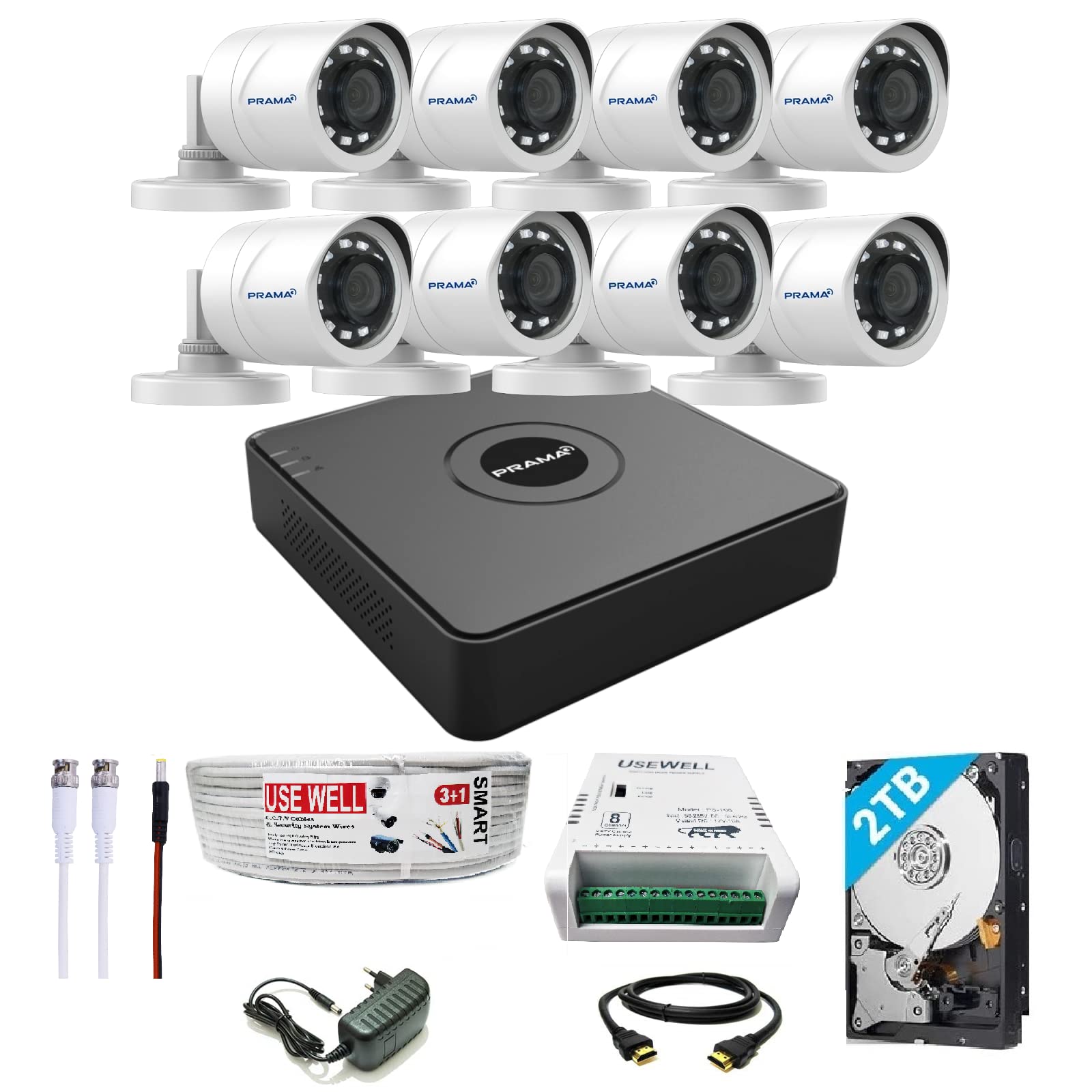
A typical DVR system includes compatible cameras, a DVR, a surveillance hard drive, cabling and a display or network connection. The cameras capture video and send it to the DVR, which records the footage according to the chosen settings. Users can then view live footage, search recordings or export video when needed.
Many DVRs can connect to a router, allowing remote viewing through a manufacturer-supported app or computer software. Remote access depends on the model, network configuration and internet connection.
Where Can an 8-Channel DVR Be Used?
An 8-channel system can suit locations where several entrances, rooms or outdoor areas need monitoring. Common applications include:
- Homes and apartment buildings
- Retail shops and small offices
- Restaurants and cafés
- Clinics and educational premises
- Warehouses and workshops
- Parking areas and building perimeters
For example, cameras might be positioned at the main entrance, rear entrance, reception area, sales floor, storage room, driveway and parking area. The final layout should be based on the site’s specific security needs.
Key Features to Consider
Camera Compatibility
DVRs commonly work with analogue camera technologies, but compatibility varies between models. Some support more than one video format, while certain hybrid models can also accommodate IP cameras. Confirm that the DVR and cameras use compatible formats, resolutions and connections before purchasing.
Recording Resolution
A DVR’s supported recording resolution affects the detail captured in footage. Higher resolution can help make details clearer, but it may also require more storage. Check both the camera resolution and the DVR’s recording capability, as the system may not record at the camera’s maximum resolution.
Hard Drive Capacity
Storage requirements depend on the number of cameras, recording resolution, frame rate, compression method and recording schedule. Continuous recording uses more storage than motion-triggered recording. Choose a surveillance-rated hard drive with capacity supported by the DVR, and check how many drives the unit can accept.
Recording Options
Useful recording modes may include continuous recording, scheduled recording and motion-triggered recording. Motion recording can help conserve storage, although the detection settings should be adjusted carefully to reduce missed events and unnecessary recordings.
Remote Viewing and Playback
Remote viewing can make it easier to check cameras when away from the premises. Look for clear information about app support, user access, playback and notifications. Secure the system with strong passwords, updated software and appropriate network settings.
Audio and Alarm Connections
Some DVRs support audio recording or external alarm inputs and outputs. These functions depend on the model and the connected equipment. If audio is required, check the relevant legal and privacy requirements before installation.
DVR vs. NVR: What Is the Difference?
A DVR is generally used with compatible analogue cameras, which send video to the recorder over cable. An NVR, or Network Video Recorder, is designed primarily for IP cameras that transmit video over a network. Some systems combine features of both, so the product specifications should be reviewed carefully.
An 8-channel DVR is not automatically an 8-channel PoE recorder. PoE (Power over Ethernet) supplies power and data to compatible IP cameras through an Ethernet cable. This is usually associated with PoE NVRs, although hybrid products may offer different connection options.
Installation Tips
- Plan camera positions to cover important areas and reduce blind spots.
- Use suitable cables and connectors for the camera and DVR type.
- Place the recorder in a secure, ventilated location.
- Use a reliable power supply and consider backup power where appropriate.
- Set the date, time and recording schedule correctly.
- Test live viewing, playback and remote access after installation.
- Restrict system access to authorised users and change default credentials.
Professional installation may be helpful where the site has long cable routes, multiple buildings, challenging outdoor conditions or specific compliance requirements.
How to Choose the Right 8-Channel DVR
Start by listing the areas that need monitoring and deciding how many cameras are required now and in the future. Then check camera compatibility, recording resolution, supported storage capacity, remote-viewing options and the number of channels available for each camera type. Also consider installation requirements, warranty terms and access to technical support.
Choosing a DVR based only on its channel count may lead to compatibility or storage issues. A well-matched system should work with the cameras, cables and recording needs of the premises.
Conclusion
A camera DVR 8 channel system can provide a practical foundation for monitoring several areas from one recorder. By checking camera compatibility, recording quality, storage capacity and remote-access features before purchase, you can select a system that better suits your property and security requirements.
7 Essential Tips for Choosing and Using an 8-Channel Camera DVR
- Choose an 8-channel DVR to connect up to eight cameras.
- Check that the DVR supports your camera type and resolution.
- Use a surveillance-rated hard drive for reliable recording.
- Set the correct date and time for accurate footage timestamps.
- Enable motion detection to save storage space.
- Use a strong password and update the DVR firmware.
- Test remote viewing and backup recordings regularly.
Choose an 8-channel DVR to connect up to eight cameras.
Choose an 8-channel DVR when you need to connect and manage up to eight compatible security cameras through one recorder. It can be a practical option for monitoring multiple areas, such as entrances, offices, shop floors or parking spaces. Before purchasing, check that the DVR supports your cameras and offers enough storage for your recording needs.
Check that the DVR supports your camera type and resolution.
Before buying an 8-channel DVR, check that it supports both your camera type and resolution. DVRs may be compatible with specific analogue formats or selected IP cameras, and support can vary by model. Also confirm the maximum recording resolution, as a DVR may not record footage at the camera’s full resolution. Matching the DVR to your cameras helps avoid compatibility issues and ensures you get the image quality you expect.
Use a surveillance-rated hard drive for reliable recording.
For reliable, continuous recording, use a surveillance-rated hard drive in your 8-channel DVR. Unlike standard desktop drives, these are designed to handle the frequent read-and-write activity of CCTV systems, often running around the clock. Choose a capacity supported by your DVR and suited to the number of cameras, recording quality and retention period you need.
Set the correct date and time for accurate footage timestamps.
Set the correct date, time and time zone on your 8-channel camera DVR to ensure every recording has an accurate timestamp. This makes it easier to search for footage, review events and provide recordings when required. If the DVR supports automatic time synchronisation, enable it and check the settings periodically, including after a power cut or system reset.
Enable motion detection to save storage space.
Enable motion detection on your 8-channel camera DVR to record footage only when movement is detected, rather than continuously. This can help reduce hard-drive usage and make it quicker to find relevant recordings. For best results, adjust each camera’s sensitivity and detection zones to suit its location, reducing alerts from routine activity such as passing traffic, moving trees or changing light. Keep in mind that motion recording may miss events if settings are too restrictive, so test the configuration and review footage regularly.
Use a strong password and update the DVR firmware.
Protect your 8-channel camera DVR by changing the default login details to a strong, unique password that is difficult to guess. Limit access to trusted users and update the DVR firmware regularly using updates from the manufacturer. Firmware updates can fix security weaknesses and improve system performance. Before updating, follow the manufacturer’s instructions and back up important settings where possible.
Test remote viewing and backup recordings regularly.
Test remote viewing and backup recordings regularly to ensure your 8-channel DVR is working as expected. Check that you can view live and recorded footage through the authorised app or computer, and confirm that recordings are being saved correctly. Periodically export a short clip to a secure backup location and verify that it plays properly. These simple checks can help identify internet, storage or settings issues before important footage is needed.