Remote CCTV Cameras: Monitor Your Property from Anywhere
A remote CCTV camera lets you view live footage and, in many cases, recorded video from a location away from the camera. Using an internet connection, you can check your home, office, shop, warehouse or other premises through a smartphone, tablet or computer.
Remote viewing can make a surveillance system more convenient, but choosing and setting it up correctly is important. This guide explains how remote CCTV cameras work, what features to look for and how to protect your system.
What is a remote CCTV camera?
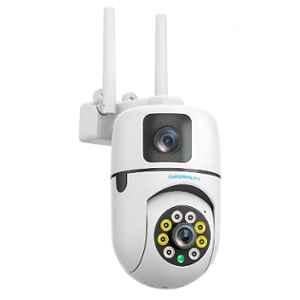
A remote CCTV camera is a surveillance camera that can be accessed over a network. The camera may connect to a digital video recorder (DVR), network video recorder (NVR) or cloud platform. When the system is connected to the internet, authorised users can access footage using a compatible app or web service.
The term “remote” describes how the camera is viewed; it does not necessarily mean that the camera itself is wireless. A remote CCTV system may use wired cameras, Wi-Fi cameras or a combination of both.
How does remote CCTV viewing work?
- The camera captures video: The camera records activity in its field of view.
- Footage is transmitted or stored: Video may be sent to a DVR or NVR, stored on a memory card, or uploaded to a cloud service, depending on the system.
- The system connects to the internet: A broadband connection or another suitable network allows authorised remote access.
- You view the footage: A mobile app, computer or web portal displays live video and may provide access to recordings, alerts and camera controls.
Features vary by model and system configuration. Some cameras offer two-way audio, motion alerts, night vision, pan-tilt-zoom (PTZ) controls or playback from recorded footage.
Benefits of a remote CCTV system
- View your premises while away: Check your property when travelling or working off-site.
- Receive activity alerts: Compatible systems can send notifications when motion or another selected event is detected.
- Review recorded footage: Find and view relevant recordings, subject to the system’s storage and retention settings.
- Monitor multiple locations: Some apps allow users to manage cameras at more than one site from a single account.
- Support day-to-day operations: Businesses may use remote viewing to check entrances, stock areas, loading bays or other operational spaces.
Important features to consider
Image quality
Choose a resolution suited to the area and level of detail required. The camera’s lens, lighting, distance from the subject and installation position also affect the quality of the image.
Night-time performance
If the area needs monitoring after dark, check the camera’s low-light performance and whether it uses infrared or another night-vision technology. Test the view in the actual lighting conditions where the camera will be installed.
Recording and storage
Decide whether footage should be stored on a DVR, NVR, memory card or cloud service. Consider storage capacity, recording duration, access requirements and any ongoing service charges. Continuous recording and motion-triggered recording may use storage differently.
Internet and power requirements
Remote viewing depends on a reliable network connection at the camera location and at the viewing device. Check the system’s bandwidth requirements, especially if several cameras will be viewed at once. Plan for power availability and, where necessary, backup power.
Mobile app and user access
Check that the app is compatible with your devices and provides the controls you need. For businesses, look for a system that allows individual user accounts and different access permissions.
Weather protection and installation
For outdoor locations, select equipment with a suitable weather-resistance rating. Position cameras to cover the required area while avoiding glare, obstructions and unnecessary views of neighbouring properties or public spaces.
Wired or Wi-Fi: which is right for remote viewing?
Both wired and Wi-Fi cameras can support remote access. Wired systems, including those using network cabling, can provide a stable connection and may suit larger or more permanent installations. Wi-Fi cameras can be easier to place where cabling is difficult, but their performance depends on wireless signal strength and network conditions.
The best option depends on the site, distance, construction materials, power supply, number of cameras and recording requirements. A site assessment can help identify the most suitable arrangement.
Security and privacy best practices
A camera connected to the internet should be protected just like any other network device. Follow these practices:
- Change default usernames and passwords before using the system.
- Use strong, unique passwords and enable multi-factor authentication if available.
- Keep the camera, recorder and app updated with the latest security updates.
- Give access only to people who need it, and remove accounts that are no longer required.
- Secure the router and Wi-Fi network with a strong password and current security settings.
- Use reputable equipment and official apps, and review the manufacturer’s privacy and data-storage practices.
- Place cameras thoughtfully and follow applicable privacy requirements. Avoid recording areas where people reasonably expect privacy.
Common uses for remote CCTV cameras
Remote CCTV systems are used in homes, retail shops, offices, factories, warehouses, car parks and construction sites. They can help owners and authorised staff check entrances, monitor deliveries, review incidents and maintain visibility of operations when they are not on-site.
Frequently asked questions
Can I view my CCTV camera on my mobile phone?
Yes, if the camera or recorder supports remote viewing and has been configured with a compatible mobile app and internet connection.
Will remote CCTV work if the internet goes down?
Remote viewing will generally be unavailable while the internet connection is down. Depending on the system, local recording may continue on a DVR, NVR or memory card. Confirm this feature before installation.
Does a remote CCTV camera need Wi-Fi?
Not always. Some systems use wired network connections, while others connect through Wi-Fi. The system needs a suitable network connection for remote access.
Can I view recordings as well as live footage?
Many systems support playback, but this depends on the recording setup, storage availability, app features and user permissions.
Choose a system that suits your site
A remote CCTV camera can provide convenient access to live and recorded video, but the right solution depends on your coverage needs, network, storage preferences and security requirements. Before selecting equipment, consider where cameras will be placed, what details need to be captured and who will be authorised to view the footage.
For a reliable result, plan the camera layout and network requirements before installation, and test both live viewing and playback after setup.
6 Essential Tips to Secure Your Remote CCTV Camera
- Use a strong, unique password for your camera.
- Enable two-factor authentication if available.
- Keep the camera firmware updated.
- Place cameras to cover entrances and key areas.
- Secure your Wi-Fi with WPA2 or WPA3.
- Check remote access settings regularly.
Use a strong, unique password for your camera.
Use a strong, unique password for your remote CCTV camera to help prevent unauthorised access to live feeds and recorded footage. Avoid default passwords, common words and passwords used for other accounts. Choose a long combination of letters, numbers and symbols, and store it securely. If the camera or app supports two-factor authentication, enable it for an extra layer of protection.
Enable two-factor authentication if available.
Enable two-factor authentication (2FA) on your remote CCTV account if the feature is available. In addition to your password, 2FA requires a second verification step, such as a code sent to your phone or generated by an authenticator app. This extra layer of security can help prevent unauthorised access to your camera footage, even if your password is compromised.
Keep the camera firmware updated.
Keep your remote CCTV camera’s firmware updated to help maintain reliable performance and protect it against known security vulnerabilities. Check for updates through the manufacturer’s official app or website, and follow the installation instructions carefully. Before updating, ensure the camera has a stable power and network connection, and use only firmware intended for your specific model.
Place cameras to cover entrances and key areas.
Position remote CCTV cameras to cover entrances and other key areas, such as reception counters, loading bays and storage spaces. A well-planned angle can help capture clear footage of people entering or leaving, while reducing blind spots. Check the view during both day and night, and avoid pointing cameras into private areas or neighbouring properties.
Secure your Wi-Fi with WPA2 or WPA3.
Protect the Wi-Fi network used by your remote CCTV camera with WPA2-AES or WPA3 security. Set a strong, unique Wi-Fi password and update your router’s firmware regularly. A secured network helps reduce the risk of unauthorised access to your camera and its footage.
Check remote access settings regularly.
Check your remote access settings regularly to ensure that only authorised users can view your CCTV footage. Review user accounts and permissions, remove access that is no longer needed, and update passwords periodically. Also check that the camera app, recorder and device firmware are up to date, and confirm that remote viewing works as expected. Regular checks can help protect your system and keep your footage secure.