Wireless IP Camera Hikvision: A Practical Guide for Home and Business Security
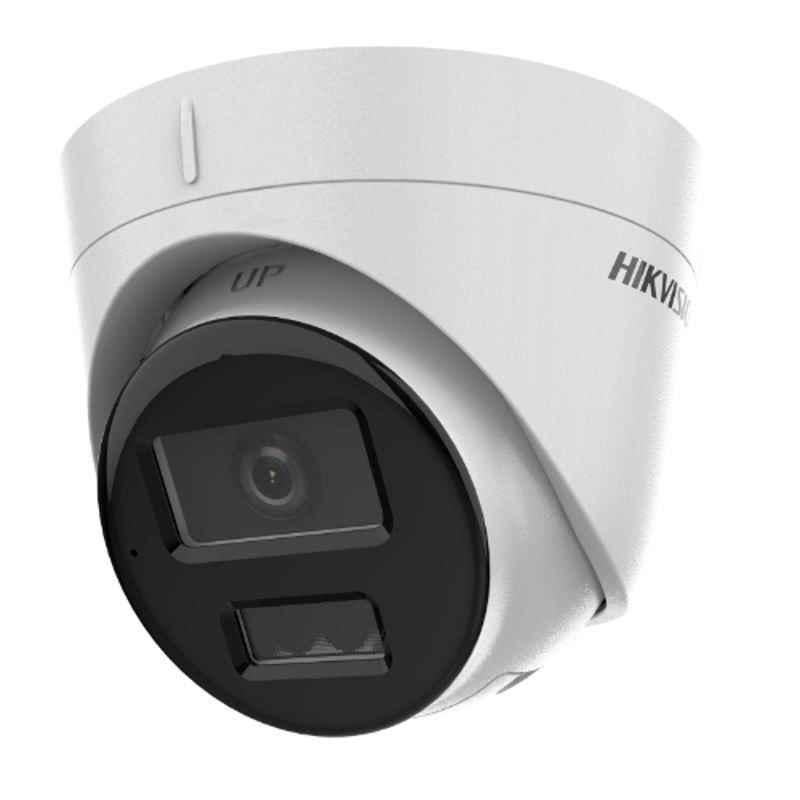
A wireless IP camera can make it easier to monitor a home, shop, office or other property without running a video cable back to a recorder. Hikvision offers a range of network cameras and security solutions, but features and connectivity options vary by model and region. Before choosing a camera, it is important to understand what “wireless” means, how the camera will be powered and how it will fit into your wider security system.
What Is a Wireless IP Camera?
An IP camera captures video and sends it over an internet protocol network. A wireless model typically connects to a router over Wi-Fi instead of using an Ethernet cable for data. The footage may be viewed through a compatible app, computer, network video recorder (NVR) or other supported platform.
Wireless does not always mean cable-free. Many Wi-Fi cameras still need a power adaptor and socket. Battery-powered options may also be available, depending on the product range, but battery life and recording features can differ considerably. Check the individual model’s documentation before installation.
Common Features to Consider
Depending on the model, a Hikvision wireless IP camera may offer features such as:
- Live viewing: Check the camera feed through a compatible device or application.
- Motion detection: Receive alerts when activity is detected. Detection options and settings vary by camera.
- Night-time monitoring: Some models include infrared or other low-light features.
- Local or recorder-based storage: Recording may be supported on a memory card, an NVR or another compatible storage system. Confirm which options are available for the model.
- Two-way audio: Certain cameras include a microphone and speaker, allowing audio communication through a compatible app.
- Weather protection: Outdoor cameras should have an appropriate ingress protection rating for the location in which they will be installed.
These features should not be assumed to be available on every Hikvision camera. Review the product specifications and compatibility information before purchasing.
Benefits of a Wi-Fi Camera
A wireless IP camera can be useful where installing network cabling is difficult, costly or disruptive. It may offer more flexibility when choosing a mounting location and can be a practical option for smaller premises or additions to an existing system.
However, Wi-Fi performance depends on the strength and reliability of the network. Thick walls, distance from the router, interference and busy networks can affect video quality or connection stability. A wired connection may be more suitable for locations where uninterrupted connectivity is essential.
Choosing the Right Hikvision Camera
Consider the following points before selecting a camera:
- Installation location: Decide whether the camera is for indoor or outdoor use and check that its design and weather rating suit the location.
- Wi-Fi coverage: Test the signal where the camera will be mounted. A strong connection is important for reliable live viewing and alerts.
- Power supply: Check whether the camera needs a nearby socket, a power adaptor or another power arrangement.
- Field of view: Choose a lens and viewing angle that cover the intended area without leaving important blind spots.
- Recording requirements: Decide whether you need continuous recording, event-based recording or a combination, and confirm compatible storage options.
- System compatibility: If you already use an NVR or other security equipment, check compatibility with the specific camera model.
- App and regional support: Confirm which software or mobile application is supported in your region and whether the camera’s firmware and features are compatible.
Basic Installation and Setup
Exact setup steps differ between models, so follow the manufacturer’s instructions supplied with the camera. In general, installation involves connecting the camera to power, using the supported setup method to connect it to the Wi-Fi network, and positioning it for the required view. The camera may then be added to a compatible app or recorder, if supported.
Before fixing the camera permanently, test the live view at the proposed location. Check image quality during both daylight and low-light conditions, and confirm that the Wi-Fi connection remains stable. Avoid pointing cameras into areas where people reasonably expect privacy.
Security and Privacy Best Practices
As with any internet-connected security device, good configuration is essential:
- Change default credentials and use a strong, unique password.
- Keep the camera firmware and associated software up to date.
- Use a secure Wi-Fi network and strong router settings.
- Limit access to the camera to authorised users.
- Review recording, notification and account settings regularly.
- Follow applicable privacy requirements and inform people where monitoring is in use, where required.
For business installations, consider having the network and security settings reviewed by a qualified installer or IT professional. The appropriate configuration depends on the camera, network and intended use.
Frequently Asked Questions
Does a wireless Hikvision IP camera need Wi-Fi?
Most wireless IP cameras use Wi-Fi for network communication. Check the individual model’s specifications, as connection options can vary.
Does wireless mean the camera does not need a cable?
Not necessarily. “Wireless” generally refers to data transmission. Many models still require a power connection, unless the selected camera is specifically designed to operate on battery power.
Can a Hikvision Wi-Fi camera record without the internet?
This depends on the model and its storage and network features. Some systems may support local recording, but remote access and notifications generally require a network connection. Check the product documentation for details.
Can it connect to an NVR?
Compatibility depends on the camera and NVR models, connection method and supported features. Confirm compatibility before purchasing or ask a qualified security installer.
Conclusion
A wireless IP camera from Hikvision can provide flexible video monitoring when running network cabling is inconvenient. The right choice depends on the installation site, Wi-Fi coverage, power requirements, recording needs and compatibility with other equipment. Compare the specifications of individual models, configure the camera securely and seek professional advice where a reliable, integrated security system is required.
9 Essential Tips for Setting Up and Securing Your Hikvision Wireless IP Camera
- Use a strong, unique password for your Hikvision camera.
- Update the camera firmware regularly.
- Place the camera within reliable Wi-Fi range.
- Use a secure 2.4 GHz or 5 GHz network supported by your model.
- Enable two-factor authentication if available.
- Set motion detection zones to reduce false alerts.
- Check live view and recordings after installation.
- Aim the camera only at areas you are allowed to monitor.
- Use a suitable memory card or recorder for local storage.
Use a strong, unique password for your Hikvision camera.
Use a strong, unique password for your Hikvision wireless IP camera to help prevent unauthorised access to its live feed and settings. Avoid default passwords, common phrases and details that could be easy to guess, such as your name or date of birth. A long password combining words, numbers and symbols is a good choice; don’t reuse it for other accounts, and store it securely. If the camera allows separate user accounts, give each person only the access they need.
Update the camera firmware regularly.
Update your Hikvision wireless IP camera’s firmware regularly to help keep it secure, reliable and compatible with supported features. Before updating, check the instructions for your specific model and use firmware from an official Hikvision source or authorised supplier. Ensure the camera has a stable power and network connection during the update, and avoid switching it off until the process is complete.
Place the camera within reliable Wi-Fi range.
Place your Hikvision wireless IP camera within reliable Wi-Fi range to help maintain a stable connection and clear, uninterrupted video. Before mounting it permanently, test the signal at the chosen location and check the live feed. Walls, metal surfaces and distance from the router can weaken reception; if the connection is inconsistent, consider repositioning the camera or improving Wi-Fi coverage.
Use a secure 2.4 GHz or 5 GHz network supported by your model.
Connect your Hikvision wireless IP camera to a secure 2.4 GHz or 5 GHz Wi-Fi network, depending on the bands supported by your specific model. Use WPA2 or WPA3 security where available, set a strong, unique Wi-Fi password, and keep your router’s firmware up to date. A 2.4 GHz connection may offer better coverage through walls, while 5 GHz can provide faster speeds over shorter distances; check signal strength at the camera’s location for a stable connection.
Enable two-factor authentication if available.
Enable two-factor authentication (2FA) for your Hikvision account if the feature is available. With 2FA, signing in requires your password and a second verification step, such as a code sent to your phone or generated by an authenticator app. This adds an extra layer of protection if your password is compromised. Use the official app or account settings to check availability, and keep your recovery details up to date.
Set motion detection zones to reduce false alerts.
Set up motion detection zones on your Hikvision wireless IP camera to focus alerts on the areas that matter, such as a doorway, gate or driveway. Excluding busy spots like roads, trees or areas with frequent movement can help reduce false alerts and make notifications more useful. After adjusting the zones, test the camera at different times of day and fine-tune the sensitivity to suit the location and lighting conditions.
Check live view and recordings after installation.
After installing your Hikvision wireless IP camera, check both the live view and recorded footage to make sure the system is working as expected. Confirm that the image is clear, the camera covers the intended area and the Wi-Fi connection is stable. Review recordings during the day and at night, and test motion alerts or other enabled features. If you notice gaps, poor image quality or missed events, adjust the camera position, settings or network connection before relying on it for monitoring.
Aim the camera only at areas you are allowed to monitor.
When installing a wireless Hikvision IP camera, aim it only at areas you are legally permitted to monitor, such as your own entrance, shop floor or private premises. Avoid recording neighbours’ homes, public areas or spaces where people expect privacy, unless you have the necessary authority and comply with applicable privacy requirements. Adjust the camera’s angle and detection zones to focus on the intended area, and let people know about monitoring where required.
Use a suitable memory card or recorder for local storage.
For reliable local recording, choose a memory card or recorder that is compatible with your Hikvision wireless IP camera. Check the camera’s specifications for supported card types and maximum capacity, and select a reputable card designed for continuous video recording. If using a recorder, confirm that it supports the camera model and your preferred recording schedule. Local storage can help retain footage when internet access is unavailable, but review the recording settings regularly and ensure the card or recorder has enough space.