Wi-Fi Enabled CCTV Cameras: A Convenient Way to Monitor Your Premises
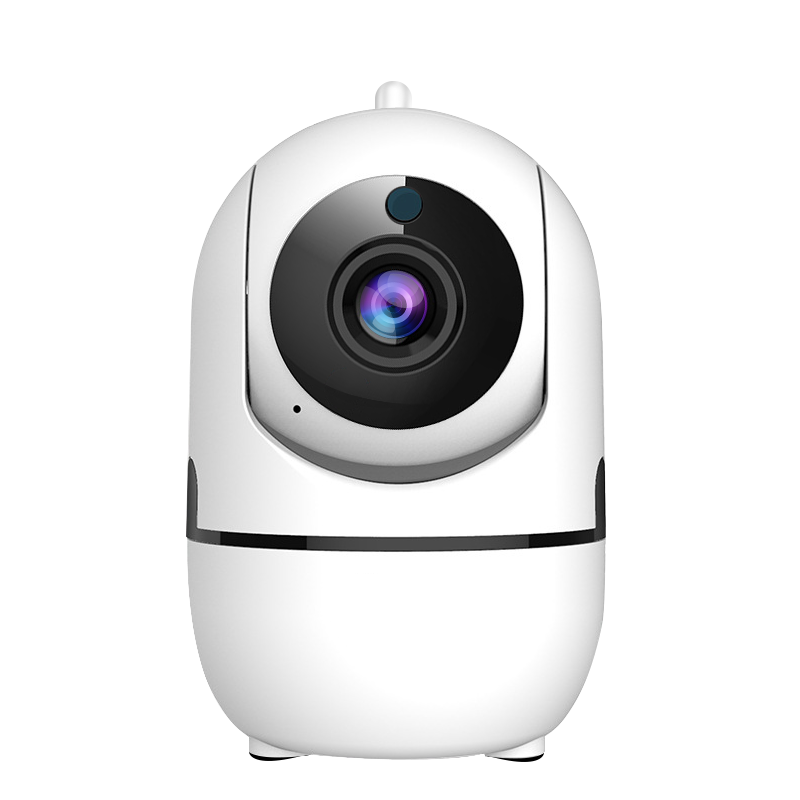
Keeping an eye on your home, office or commercial premises is easier with a Wi-Fi enabled CCTV camera. These cameras connect to a wireless network and can send video to a compatible mobile app, computer or recording system. Depending on the model and setup, you may be able to view live footage, receive motion alerts and review recorded video while away from the premises.
What Is a Wi-Fi Enabled CCTV Camera?
A Wi-Fi enabled CCTV camera uses a wireless network to communicate with other devices. Many models connect to a router and allow users to view footage through an app or web interface. Some cameras record to a memory card or network video recorder (NVR), while others support cloud storage or a combination of storage options.
Wi-Fi refers to the camera’s network connection; it does not necessarily mean the camera is completely wireless. Many Wi-Fi cameras still need a power cable. Battery-powered models are also available, but their operating time depends on usage, settings and battery capacity.
Benefits of Wi-Fi CCTV Cameras
- Remote viewing: View live video from a compatible phone, tablet or computer, subject to internet and app availability.
- Flexible placement: Wireless network connectivity can make installation simpler where running a video cable is difficult.
- Motion notifications: Many models can send alerts when movement is detected. Alert settings and detection accuracy vary by camera.
- Useful recording options: Depending on the model, footage may be saved to a memory card, NVR or cloud service.
- Expandable coverage: Multiple cameras can often be viewed through one app or monitoring platform.
- Two-way audio: Selected models include a microphone and speaker, allowing communication through the camera.
Things to Consider Before Buying
Choosing the right camera involves more than checking whether it has Wi-Fi. Consider the following points before making a decision:
- Image quality: Select a resolution suited to the area being monitored. The camera’s lens, lighting and placement also affect how clearly details can be seen.
- Indoor or outdoor use: For outdoor installation, check the product’s weather-resistance rating and suitability for local conditions.
- Night vision: Infrared or other low-light features can help capture video after dark. Check the stated range and performance for the intended area.
- Wi-Fi coverage: The camera needs a reliable signal at its installation point. Thick walls, distance and interference may affect connectivity.
- Storage and recording: Confirm how footage is stored, how long it is retained and whether any subscription charges apply.
- Power supply: Check whether the camera requires a power adapter, supports Power over Ethernet (PoE), or uses a rechargeable battery.
- App and compatibility: Review supported phones, operating systems, NVRs and smart-home platforms before purchase.
- Privacy and security: Look for secure account access, software updates and options such as strong passwords and two-factor authentication.
Wi-Fi CCTV Cameras and Wired CCTV Systems
Wi-Fi cameras can be convenient for locations where installing a network cable is not practical. However, performance depends on a stable wireless connection. For larger sites, areas with weak Wi-Fi or installations that need continuous, dependable connectivity, a wired system may be more suitable. Wired cameras can also reduce reliance on wireless coverage, though they require cable planning and installation.
Some properties benefit from a combination of both. A site assessment can help determine the best camera type, network arrangement and recording method for each location.
Installation Tips
- Choose suitable locations: Position cameras to cover entrances, driveways, reception areas or other relevant points without unnecessarily capturing neighbouring properties.
- Check the signal: Test Wi-Fi strength where each camera will be installed before fixing it in place.
- Set the viewing angle carefully: Avoid aiming directly at bright lights or reflective surfaces, which can affect the image.
- Secure the camera: Install it out of easy reach where possible, while ensuring it still has a clear view.
- Test recording and alerts: Confirm that live view, notifications and playback work as expected after installation.
- Keep software updated: Install firmware and app updates provided by the manufacturer.
Protecting Your CCTV System
A connected camera should be treated like any other device on your network. Change default passwords, use a unique and strong password, enable two-factor authentication if available, and keep the camera’s firmware up to date. Secure the Wi-Fi router with a strong password and use current encryption settings. Limit access to trusted users and review account permissions regularly.
It is also important to use CCTV responsibly. Inform people where appropriate, restrict access to recordings, and follow applicable privacy requirements. Avoid recording areas where people reasonably expect privacy.
Is a Wi-Fi Enabled CCTV Camera Right for You?
A Wi-Fi enabled CCTV camera can be a practical choice for homes, small offices, shops and other premises that need convenient remote viewing. The right solution depends on the area to be covered, available Wi-Fi, power supply, recording needs and privacy considerations. Comparing these factors before installation can help you build a reliable and useful surveillance system.
5 Essential Tips to Secure Your Wi-Fi-Enabled CCTV Camera
- Use a strong, unique password for the camera.
- Keep the camera’s firmware updated.
- Place it within reliable Wi-Fi range.
- Enable two-factor authentication if available.
- Check privacy settings and disable unused features.
Use a strong, unique password for the camera.
Use a strong, unique password for your Wi-Fi enabled CCTV camera to help prevent unauthorised access to its live feed and recordings. Avoid default passwords, easy-to-guess details and passwords used for other accounts. Choose a long combination of letters, numbers and symbols, and enable two-factor authentication if the camera supports it.
Keep the camera’s firmware updated.
Keep your Wi-Fi enabled CCTV camera’s firmware updated to help maintain reliable performance, improve compatibility and address security vulnerabilities. Check the manufacturer’s app or website regularly for updates, and follow the recommended installation steps. Where possible, enable automatic updates or set a reminder to check for them.
Place it within reliable Wi-Fi range.
Place your Wi-Fi enabled CCTV camera within reliable range of your router to help maintain a steady connection for live viewing, alerts and video uploads. Walls, floors and other obstacles can weaken the signal, so test the Wi-Fi strength at the intended location before installing the camera. If the signal is weak, consider repositioning the camera or router, or using a Wi-Fi extender.
Enable two-factor authentication if available.
Enable two-factor authentication (2FA) on your Wi-Fi enabled CCTV camera account if the feature is available. In addition to your password, 2FA requires a second verification step—such as a code sent to your phone—before anyone can sign in. This extra layer of security can help prevent unauthorised access to your camera and video footage, even if your password is compromised.
Check privacy settings and disable unused features.
Check the privacy settings on your Wi-Fi enabled CCTV camera and disable features you do not need, such as audio recording, cloud storage or remote access. Limiting these functions can help protect personal information and reduce unnecessary data collection. Review the settings regularly, especially after software updates, and ensure that only authorised users can view the camera or its recordings.